워드프레스 관리자화면-페이지 편집

워드프레스 관리자화면-페이지 편집

워드프레스 관리자화면-페이지 편집

아이린앤컴퍼니에서 오픈 전 고객이 충분히 테스트 할 수 있는 시간을 드리고, 수정 요청 하신 부분들을 반영한 후 오픈하기 때문에 운영을 하시다가 필요한 이미지와 텍스트 정도의 간단한 편집 방법을 알려드립니다.
 
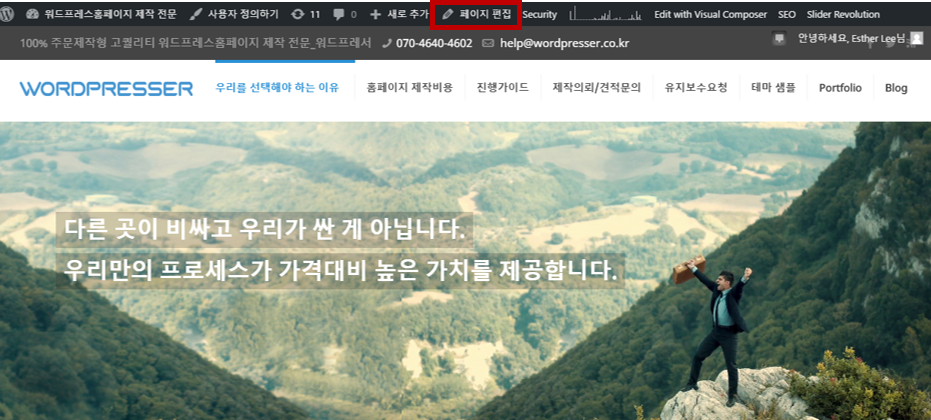
워드프레스 로그인화면에서 로그인을 한 후 해당 사이트로 이동하면 상단 버튼이 보입니다.
편집을 원하는 페이지로 이동한 후 상단에 [페이지편집]을 클릭하면 페이지 편집 화면으로 이동합니다.
%ea%b4%80%eb%a6%ac%ec%9e%90_%ed%8e%98%ec%9d%b4%ec%a7%80%ed%8e%b8%ec%a7%911
 
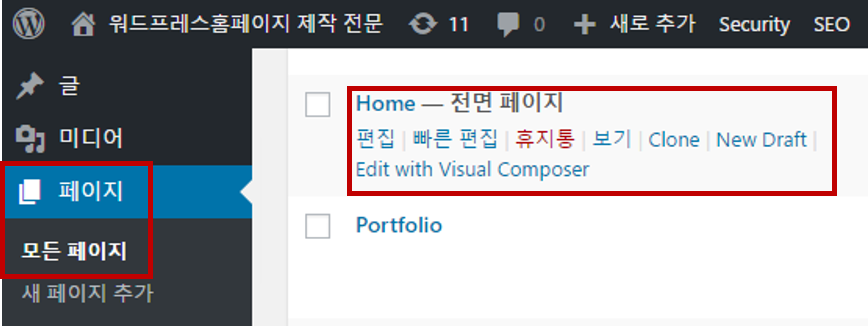
또는 관리자 화면의 [페이지]-[모든페이지]를 클릭하시면 홈페이지에 적용된 모든 페이지를 확인하실 수 있습니다.
편집을 원하시는 페이지를 클릭하시면 페이지 편집 화면으로 이동합니다.
%ea%b4%80%eb%a6%ac%ec%9e%90_%ed%8e%98%ec%9d%b4%ec%a7%80%ed%8e%b8%ec%a7%912
 
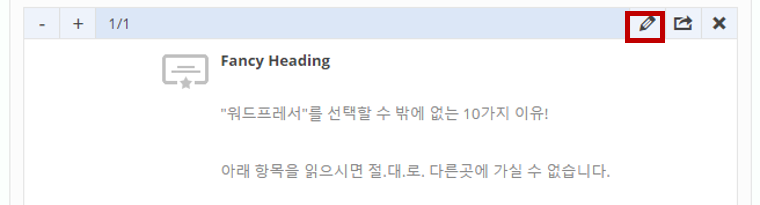
텍스트 박스안의 글을 변경하시거나 템플릿 안에 내용이 있는 경우 템플릿의 [연필]아이콘을 누르시면 수정 페이지로 이동합니다.
%ea%b4%80%eb%a6%ac%ec%9e%90_%ed%8e%98%ec%9d%b4%ec%a7%80%ed%8e%b8%ec%a7%913
 
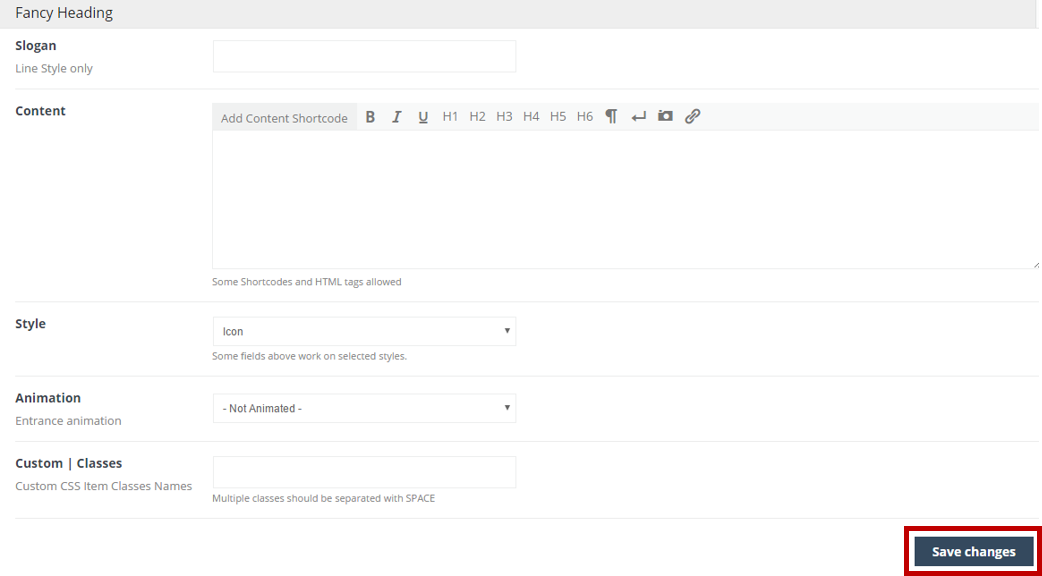
편집 팝업 창이 뜬 경우에는 수정을 완료하시고 하단의 [Save change]버튼을 눌러주셔야 합니다.
%ea%b4%80%eb%a6%ac%ec%9e%90_%ed%8e%98%ec%9d%b4%ec%a7%80%ed%8e%b8%ec%a7%915
 
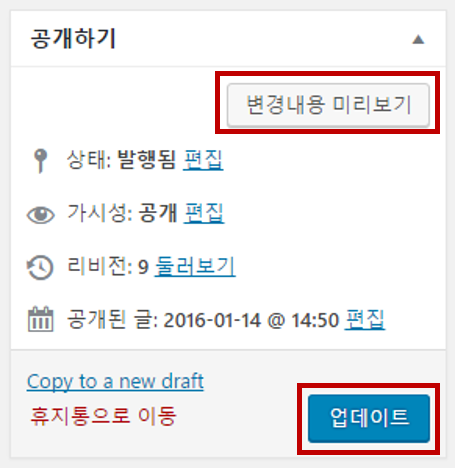
편집을 원하는 페이지의 수정이 완료되면 좌측에 있는 [변경내용 미리보기]로 미리보기를 눌러 확인하실 수 있고, [업데이트] 버튼을 클릭하시면 수정하신 내용이 홈페이지에 적용됩니다.
%ea%b4%80%eb%a6%ac%ec%9e%90_%ed%8e%98%ec%9d%b4%ec%a7%80%ed%8e%b8%ec%a7%914
 
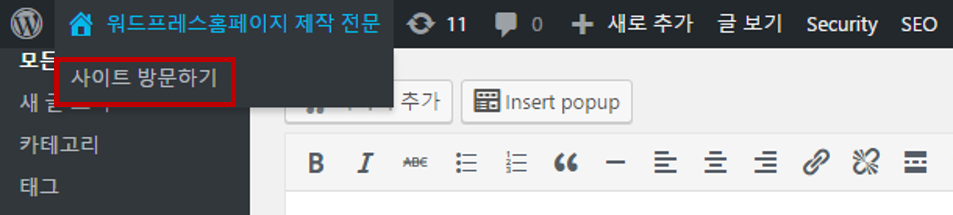
상단 메뉴바에서 [사이트 방문하기]버튼을 클릭 하시면 홈페이지로 이동하셔서 적용된 화면을 확인하실 수 있습니다.
%ea%b4%80%eb%a6%ac%ec%9e%90_%ed%8e%98%ec%9d%b4%ec%a7%80%ed%8e%b8%ec%a7%916

We value your privacy

We use cookies to make this website work and, with your permission, to understand how it is used and to measure our advertising. Necessary cookies are always on. Analytics and marketing cookies stay off unless you choose “Accept all” or switch them on under “Customize”. You can change your choice at any time from “Cookie settings” at the bottom of the page. Read our Privacy Policy.

Strictly necessaryNeeded for the site to work: security, your language choice and remembering your cookie settings. These cannot be switched off.
Always active